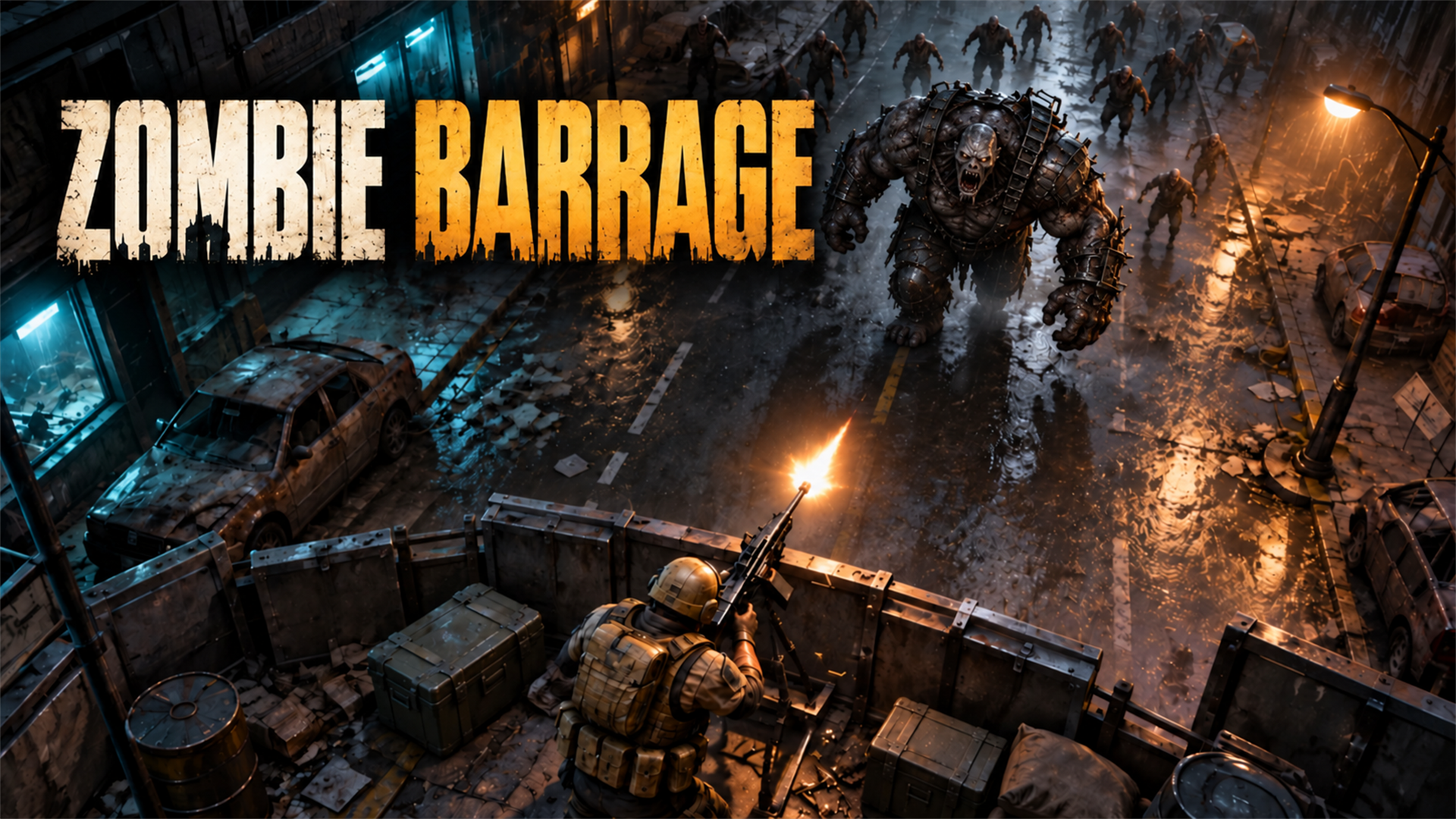
A larger play area can make it easier to watch incoming zombies or judge a narrow platform landing. If you searched for “Zombie Barrage full screen” or “Slime Panic full screen,” start from each game’s page on GameTopX. Both games are available to play in a browser without Flash or a conventional download. Full-screen behavior can differ between browsers, and a school-managed device may restrict it, so use the controls your browser actually provides.
Start from the correct game page
Open Zombie Barrage if you want to defend a barricade against zombie waves. A larger view can help you notice a fast enemy near the edge while you are aiming at a tougher target. Use the game page’s full-screen control if available. If your browser asks for permission, decide whether to allow it; the game should remain playable in its ordinary page view too.
After expanding the play area, click inside the game before aiming. This gives the game focus and reduces the chance that a click or shortcut acts on the surrounding page. Check the pause and sound controls before the next wave if you changed the size during play.
Open Zombie BarrageGive platforming room to breathe
Slime Panic is about accurate movement through 25 trap-filled levels. A larger view may make a landing zone easier to read, but it will not remove hidden surprises or change the physics. When possible, expand the game using its page control or your browser’s full-screen option, then test movement before attempting a difficult jump.
If the browser changes its display size, give the game a moment to settle. A narrow landing still calls for short movement corrections, even on a wide monitor. On mobile, rotate the device only if the game layout supports it; the on-screen controls should remain reachable.
Open Slime PanicWhat full screen does—and does not—change
Full screen changes the viewing area, not the game rules. It does not unlock upgrades, skip levels, or guarantee better performance. On a slow device, a larger rendered image may even require more work. If the game stutters, try the normal page size or close heavy background tabs.
To leave browser full screen, use the browser’s exit control or the key it displays. If your device is managed by a school or employer, its settings may limit the feature or access to the game site. Do not try to bypass those restrictions. You can still play from the normal page when access is permitted.
No Flash required
Neither GameTopX play page asks you to install the old Flash plugin. Open the game in a current browser and use the controls shown on the page. A reliable connection matters, especially when opening the site for the first time, but there is no desktop installer in this play flow.
Choose the experience you want: careful platforming in Slime Panic or barricade defense in Zombie Barrage. Both game pages are linked below, so you can move from the guide directly into play.